
Change Log
v1.4 – 2025-11-27
- Corrected explanation of "Save Changes" button – it creates reusable adjustment snapshots, not sidecar persistence
- Clarified that "Always Save" preference (enabled by default) handles automatic sidecar writes
- Added terminology table explaining Save Changes vs Auto-Save behaviour
- Removed incorrect guidance suggesting manual saves are required for edits to persist
Why You Still Need Phocus Even If You Don’t Want to Edit in It
When I bought my Hasselblad X2D II in October 2025 - my first Hassy, I knew I was signing up for a different kind of workflow. I’ve been shooting Leica for years, and I love that system deeply, but the moment I started pulling images off the Hassy, there was no going back - the files have a depth and subtlety that just grabbed me. The quirks? Sure. The learning curve? Definitely. But the results are worth every bit of it.
While figuring out how to fit the X2D II into my existing workflow, I kept bumping into behaviours in Phocus - Hasselblad’s RAW processing software - that weren’t obvious from the user manual. None of it is complicated once you understand it, but very little of it is spelled out. So I started taking notes. And testing things. And digging through obscure forum posts. And testing some more.
This post is the result of that curiosity. It’s not meant to be definitive or authoritative - I’ve only been a Hasselblad owner for a short time. What you’ll find here is a collection of observations, experiments, and practical explanations that would have saved me a lot of head-scratching in the first couple of weeks. Some of what I describe is based on documented behaviour, some of it’s based on what the software actually does, and some of it is educated guesswork informed by testing.
If you’re new to the X2D II or to Phocus, or if you’re coming from Leica (like me) and want to understand how things differ under the hood, you might find this helpful. And if you spot something I’ve misunderstood, please reach out - I’m always up for learning more about this system.
Updated 2026-04: This post was originally written against Phocus 4.0.x. Phocus 4.1.1 added a numeric suffix to HNNR output filenames, and Phocus 4.1.2 introduced a 3FR/preview color regression (covered in a separate post).
Updated 2026-05: I was wrong about how HNCS presets persist in the .phos sidecar. The corrected version is in the “Correction note (May 2026)” box at the top of Section 2 below; the rest of this post has been edited to match.
The short answer: Phocus is the only software that can apply Hasselblad's proprietary HNCS color science and HNNR noise reduction to
your RAW files. Even if you prefer editing in Capture One or Lightroom, you'll want to use Phocus for the initial render—it's where the
"Hasselblad look" actually gets baked in. The rest of this post explains how that works in practice.
Related: what changed when Capture One added native 3FR support.
New to Phocus entirely? Start with What Is Hasselblad Phocus? A Free RAW Editor for Mac for the full overview: what it does, what it costs, and how it compares to Lightroom and Capture One.
Where Phocus Fits Into the Hasselblad Workflow
Phocus generally makes importing straightforward, but the X2D II seems to have a couple of modes that behave differently depending on how and when the camera is connected. None of it is complicated once you know what to expect, but a few details aren’t explicitly documented by Hasselblad, so the descriptions here are, for the most part, based on observed behavior rather than official specifications.
Note that in Phocus v4 3FR images can be edited directly, without conversion to FFF
The goal in this section is simply to set the stage:
How do the files get into Phocus, and in what form?
Getting Files Off the X2D II and Into Phocus Without the Confusion
Phocus can work with image files from the X2D II in a few different ways, and the method used affects what appears in macOS, which file format Phocus works with, and how things behave later in terms of adjustments and sidecar usage. In everyday use, the camera’s files typically reach the Mac in one of the following ways:
- CFexpress card mounted directly in macOS using a Cfe Card reader
- The camera connected via USB in Mass Storage mode
- The camera connected while Phocus is already open, resulting in a tethered-style connection
When a CFexpress card is inserted and the camera is connected in Mass Storage mode, macOS usually mounts two separate volumes - one for the internal SSD and one for the CFexpress card - and Phocus can import 3FR files from either source. In contrast, when the camera is connected while Phocus is open and the camera enters a tethered communication state, macOS does not mount any volumes, and Phocus instead offers FFF files for import.
The following sections simply describe what to expect when using each method, based on observed behaviour in Phocus 4.0.1 on macOS.
Have you seen the guide? I've published Essential Phocus 4.x for Mac - 85 topics across 251 pages covering everything from HNCS color science to HDR workflows. It's the reference manual Hasselblad hasn't updated since 3.8. It's $49, and updates are included.
Importing From a CFexpress Card and What Usually Happens
This is the most predictable path, and it behaves exactly as you’d expect. It is also potentially the fastest way to import files, dependent on the speed of the card reader you use, as well as the speed of the ports on your Mac.
What usually happens:
- macOS mounts the CFexpress card as a normal drive.
- Phocus sees and imports the original .3FR files.
- It reads:
- the embedded JPEG preview
- EXIF data
- rating/metadata
- Then applies your chosen import preset (Standard, Nature, etc.) as soon as the file is displayed inside Phocus.
At this stage, Phocus hasn’t written anything to a .phos sidecar yet.
The preset is applied inside the application, not yet written to the sidecar: I’ll get deeper into that in Section Two.
CFexpress is the most straightforward import source, which is why a lot of people use it even when the camera has internal storage available.
Related: a fast first cull before Phocus.
Importing From the X2D II Over USB-C and How It Differs From Using a CFexpress Card
The X2D II’s internal SSD is very fast, and Phocus can import directly from it, albeit at USB 3.2 Gen 2 speeds, and assuming you're using the Hasselblad-supplied USB-C cable. And again the caveat that it also depends on the speed of the ports on your Mac that you connect it to.
The behavior depends a little on how the camera connects and how Phocus is launched. I couldn't find this explicitly documented by Hasselblad, so the explanation here is based on what I observe to be consistently happening in normal use.
A workflow that reliably exposes the SSD and inserted CFexpress card as drives:
- Quit Phocus completely.
- Connect the X2D II to the Mac via USB-C.
- The camera typically shows a “Mass Storage?” prompt.
- After tapping it, macOS mounts the internal SSD and inserted CFe card as two separate drives.
- Launch Phocus after the volume appears in Finder.
- Phocus then imports true 3FR files, just like a CFexpress card.
Understanding the Mass Storage Prompt When Phocus Is Already Open
In some cases, the Mass Storage prompt still appears even when Phocus is open.
Tapping it in that state doesn’t seem to change how Phocus interacts with the camera on the machines I’ve tested: it still connects to it in tethered mode, not mass storage mode.
The one pattern that does hold up well is:
When the camera mounts as a drive before Phocus launches, Phocus reliably imports the original 3FRs.
That sequence is simple enough to use consistently if 3FR import is the goal.
Importing When the Camera Is Already Connected and Why Files May Appear as FFFs
If the camera is connected while Phocus is already open, the behavior shifts in a noticeable way:
- Neither the internal SSD or inserted CFe card mount in Finder.
- Phocus presents the camera like a tethering source than a storage device.
- The import dialog offers FFF files instead of 3FRs.
What the FFFs appear to be:
Hasselblad hasn’t publicly documented the exact mechanics, that I can find, but based on some testing:
- These FFFs are not the camera’s original files.
- Instead, they appear to be containers Phocus generates from the image data it receives over the tethering/communication protocol.
- They lack the embedded JPEG preview and don’t replicate the metadata structure of a native 3FR (verified via ExifTool).
Nothing about this is necessarily “wrong”, it’s just different from importing the original files straight off the SSD, and some folks actually prefer working with FFF files.
Update (June 2026): this describes Phocus through 4.1.x. Phocus 4.2 changed one thing when it imports a 3FR. It rewrites the EXIF camera Model tag from X2D II 100C to Hasselblad X2D II 100C, so the imported file is no longer byte-identical to the card. The image data is untouched, but software that identifies the camera by the EXIF Model field, such as DxO PureRaw, may not recognize a 4.2-imported file. If you send 3FRs to DxO, copy them off the card directly rather than importing through Phocus.
Related: how Phocus 4.2's EXIF Model rewrite breaks DxO PureRaw.
Why this matters
If you’re expecting original 3FR files and instead end up with FFFs, it helps to understand that Phocus seems to be interacting with the camera in a different mode. The only visible indication in the UI that you’re in tethered mode is that it won’t display previews directly from the RAW files on the card/SSD, referring to them, somewhat confusingly, as ‘legacy’ files.
How to Ensure Phocus Imports Your Files as 3FR Instead of FFF
If the intention is to work directly with the original 3FR files recorded on the camera’s SSD, the following order seems to be the most reliable:
- Quit Phocus.
- Connect the X2D II.
- Tap Mass Storage.
- Wait for the SSD and inserted CFe card to mount as drives in Finder.
- Launch Phocus and import.
This sequence avoids the tethered-import behavior and uses the SSD as a normal storage device.
Why Choosing Mass Storage vs Media Transfer Protocol (MTP) Changes What Phocus Imports
Mass Storage mode (SSD & inserted CFe mounted):
- Camera typically shows “Mass Storage?” prompt
- Drives appear in Finder
- Phocus imports the original .3FR files
- Behavior matches CFexpress import
Tethering-style mode (SSD not mounted):
- No drives appear in Finder
- Phocus sees a connected camera rather than a storage device and does not display previews
- Imports appear as .FFF files
- File contents differ from the original 3FRs
- Useful for tethered workflows, but different from a file-based import
Why Getting the Import Right Matters for HNCS, HNNR, and the Rest of the Workflow
Everything that comes later - how presets get applied, what gets stored in sidecars, how consistent edits are across machines - depends on whether Phocus imported a 3FR or generated an FFF.
Section Two will attempt to build on this by looking at what actually gets applied at import time (and what doesn’t), and how much of that is written to the sidecar file versus kept inside Phocus itself.
What Actually Gets Applied at Import (and What Doesn’t)
Once a 3FR file appears inside Phocus, regardless of whether it came from a CFexpress card or the internal SSD, Phocus immediately applies some interpretation of the image. Some of this is visible and obvious, while other parts happen quietly behind the scenes. It’s also not always clear what Phocus is saving versus what it’s simply showing you, so this section focuses on separating those two ideas.
The short version is that Phocus does a lot at import time, but it doesn’t write much of it anywhere permanent.
Choosing an HNCS Preset at Import and Which One Makes Sense for Most Images
When you select a preset in the import dialog, Phocus applies that preset every time the image is rendered (HNCS is a render-time pipeline, not a one-time import operation — the first render just happens at import). This includes:
- the HNCS tone curve
- the HNCS colour rendering
- any preset-specific bias in contrast or saturation
These changes are real in the sense that they affect what you see and how the file will export later.
Correction note (May 2026): The original version of this post said HNCS presets were never recorded in the .phos sidecar and that Phocus had no record of which preset was applied. That was wrong. After empirical inspection of the .phos files Phocus actually writes, the preset name and its slider values ARE recorded on commit (export, Save Changes, or navigate-away with Always Save on), in theNameandReferenceSettingNamefields of the new ImageSettings entry. I had inferred the file behavior from the toolbar Adjustments dropdown, which never displays the preset name back to the user once a commit has happened (it shows "Edit..." or "3FR"). The data is in the file; the UI just does not surface it. Standard and the default 3FR baseline are the one exception: both writeName='3FR'with an empty reference, indistinguishable in the sidecar. Separately: the Import dialog's preset dropdown is silently ignored in the default configuration as of Phocus 4.1.x (Hasselblad case #9940198; per August 2026 testing the preset does apply if you untick "Use embedded if available", which is ticked by default and re-ticks on every relaunch). Otherwise apply a non-default preset via the toolbar Adjustments dropdown after import, or Modify for a batch.
Two important caveats in Phocus 4.1.x:
- The Import dialog's "Adjustment" preset dropdown is silently ignored in the default configuration as of Phocus 4.1.x (Hasselblad case #9940198). With "Use embedded if available" ticked, the default (it re-ticks on every relaunch), your selection has no effect and imported images arrive at a flat baseline, which August 2026 measurement shows is not the "Standard" preset (about 10% RMSE away). Unticking the checkbox applies the chosen preset at import (verified on 4.2.1). Otherwise, switch to the preset via the Adjustments dropdown in the main toolbar after import, or apply it to a batch via Modify.
- Until you commit (export, click Save Changes, or navigate-away with Always Save on), the preset and its slider values live in memory only. The .phos sidecar at this stage contains only the metadata envelope (EXIF, IPTC, rating). Nothing about the preset is written to disk yet.
Once a commit fires, the picture changes. When I read the .phos back with plutil -p, the new entry contains:
- The preset name, in two fields (
NameandReferenceSettingName). For Nature, Portrait, Product, and Square Crop, both fields carry the preset name. For Standard and the default 3FR baseline, the entry's name is just3FRwith an empty reference, so the file cannot distinguish "Standard chosen explicitly" from "no preset, default baseline." - The preset's slider values (sharpening amount, radius, noise limit; the Gradations tone curve), alongside whatever else you have adjusted.
So the preset is a rendering-time decision until the moment you commit, after which it joins the file's recorded history. The Adjustments dropdown still doesn't surface the preset name back to you in the toolbar (it shows "Edit..." or "3FR" once a commit has happened), but the data is in the .phos.
This makes the import preset more of a rendering-time decision than a setting that becomes part of the file’s history.
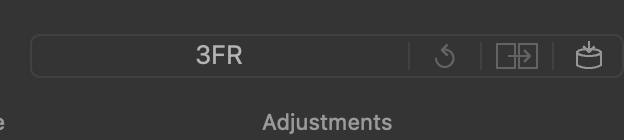
Why Phocus Still Shows “3FR” After Choosing an HNCS Preset (and What It Really Means)
After import, the adjustments dropdown at the top of the Phocus window typically reads:
3FR
This doesn’t mean “no preset was applied.” It simply reflects that the adjustment set is tied to a 3FR file. The label does not update when a preset is chosen or changed.
From observing the behaviour, it seems this dropdown is closer to a technical identifier than a user-facing label. It doesn’t appear to track presets at all, and it isn’t attempting to communicate the current HNCS profile.
All in all it feels very counter-intuitive.
What Phocus Applies in Memory but Doesn’t Save Right Away
This is one of the more unintuitive parts of the workflow:
Changing the import preset alone does not create or modify a sidecar file. A subsequent commit (export, Save Changes, navigate-away with Always Save on) does, and at that point the preset name and its slider values are written to the .phos.
The .phos sidecar remains a pure metadata container until something triggers a commit. The triggers are: an actual slider change followed by a commit, a crop or rotation followed by a commit, or an export.
What is deferred at the preset-change moment (and written on the next commit):
- the preset name (as covered in the previous section)
- the preset's slider values (Sharpness Amount and Radius, Gradations tone curve, and the rest)
- any preset-defined rendering parameters
None of these land in the sidecar before the first commit, and all of them appear after, with the same Standard / default-3FR caveat as before: those two cases produce identical entries.
What Actually Triggers Phocus to Write a Sidecar File
The moment you change anything Phocus considers an 'adjustment,' Phocus marks the image as having unsaved changes. If 'Always Save' is enabled in Preferences (the default), these changes are written to the .phos sidecar automatically when you navigate to another image. The types of changes that trigger this include:
- exposure
- white balance or tint
- dynamic range sliders (highlights, shadows)
- clarity and structure
- noise reduction
- cropping or straightening
- perspective corrections
These values are written as explicit deltas from Phocus’ internal baseline, which is why the .phos file remains empty of adjustments until you move at least one control.
Phocus has an 'Always Save' preference (enabled by default) that automatically writes your adjustments to the sidecar when you navigate away from an image. You don't need to manually save for your edits to persist. However, if you want to create a reusable adjustment set - one that appears in the Embedded list and can be applied to other images via 'Use Last Saved Adjustments' - you need to explicitly click 'Save Changes' in the toolbar (or use Image > Save Adjustments from the menu).
Why the Image You See in Phocus May Not Match What’s Actually Saved
Phocus’ viewer always reflects the current rendering engine state. That state includes:
- the chosen import preset
- embedded JPEG preview (initial thumbnail only)
- all default RAW interpretation parameters
- any slider changes you’ve made
Until a commit fires, the preset is held in memory only and the .phos contains nothing about it. That is why swapping between Standard, Nature, or any other HNCS preset changes what you see immediately but produces no file change. Once a commit fires (export, Save Changes, or navigate-away with Always Save on), the preset is captured to the sidecar; before that, it lives only in the rendering engine.
How Phocus Bakes In Your Import Preset Even If Nothing Has Been Saved Yet
If you export a TIFF without touching any sliders:
- the chosen preset is reflected in the export pixels
- the TIFF contains the look you see on screen
- the exported file retains Hasselblad's colour profile if Output Profile = "Source" is used
- the export itself is a commit, so the preset name and its slider values get written to the .phos at the same time
This creates a situation where:
- The TIFF carries the rendered look but no preset metadata
- The .phos sidecar carries the preset name (in the new ImageSettings entry) and the preset's slider values
- The Adjustments dropdown in Phocus shifts to "Edit..." even though no manual adjustment was made; the export commit alone is enough to flip it
So if you want preset fidelity downstream, archive the .3FR + .phos pair, not just the TIFF. The TIFF preserves the visual identity but cannot tell you which preset produced it; the .phos can (with the Standard / default-3FR caveat noted earlier).
How Phocus Separates What You See From What It Actually Saves
Applied immediately (but only in memory):
- HNCS profile from the chosen preset
- Colour and tone interpretation
- The embedded preview
- The baseline Hasselblad rendering pipeline
Not yet in the sidecar before the first commit:
- The HNCS preset you chose
- Preset-derived slider values
- Tone curve selections
- Anything relating to the internal render state
Written to the sidecar on commit (export, Save Changes, or navigate-away with Always Save on):
- The preset name (with the same Standard / default-3FR caveat: that case writes
3FRand is indistinguishable from the baseline) - The preset's slider values (sharpening, Gradations curve, and the rest)
- Any explicit edits you have made: exposure, white balance, crop, clarity, dynamic range tools, noise reduction, perspective tools
With the default 'Always Save' preference enabled, these are written to the sidecar automatically when you navigate away from the image. No manual save is required for persistence. The 'Save Changes' button serves a different purpose: it creates a named entry in the Embedded adjustment list, which you can later revert to or apply to other images.
The core idea:
Phocus treats HNCS presets as part of its internal rendering pipeline. They shape what you see, they're baked into exported TIFFs, and on commit the preset name plus its slider values are written to the .phos. Hasselblad engineering later put that in writing: HNCS is an always-on stage inside every Phocus render, on Mac and Mobile alike; see I Asked Hasselblad Which Render Is the Real HNCS. Wrong Question, as it turns out..
The reason I originally got this wrong is that the toolbar Adjustments dropdown never displays the preset name back to you after a commit. It shows "Edit..." or "3FR." The data is in the file, but the UI does not surface it.
How the Adjustments Dropdown in Phocus Changes Meaning at Each Stage
One part of the interface that can be confusing at first is the Adjustments dropdown at the top of the Phocus window. It doesn’t behave like a simple preset selector. Instead, it changes meaning depending on what stage the image is in.
Right after import
- The dropdown shows “3FR”
- A preset may have been applied during import
- The preview reflects that preset
- But there is no sidecar yet
- And there is no record yet of which preset was used (a record gets created on the first commit)
At this point, “3FR” refers to the source file type, not the rendering state.
If you change the preset before saving
- The dropdown shows the preset name
- The rendering updates to match it
- The preset is still not written to the sidecar at this stage; a commit (export, Save Changes, or navigate-away with Always Save on) is what triggers the write
This is the only moment where the dropdown acts like a preset selector.
After saving or making the first adjustment
- The dropdown changes to “Edit...”
- The .phos file is created or updated (automatically, if "Always Save" is enabled)
- Only explicit slider values are recorded
- The preset name and its slider values are written to the new ImageSettings entry (in
Name,ReferenceSettingName, and the standard parameter dump); the dropdown just does not display the name back to you
Note that clicking "Save Changes" doesn't change what's written to the sidecar - it creates an entry in the Embedded list, which is a separate concept from sidecar persistence.
So the dropdown has now shifted to showing the current saved adjustment state.
Switching back to “3FR” after saving
This now truly reverts the rendering to the RAW baseline with no preset applied — which looks different from “3FR” immediately after import. This is where the behaviour feels inconsistent even though it follows Phocus’ internal logic.
The important takeaway
The sidecar contains the preset name (inNameandReferenceSettingNamefields) and the preset's slider values once a commit fires. The toolbar Adjustments dropdown does not display the preset name back to the user, but the data is in the .phos and recoverable viaplutil -por any plist inspector. The one exception is Standard / default 3FR rendering, whose committed entry isName='3FR'with an empty reference, indistinguishable from the baseline.
(Earlier versions of this post said the sidecar never contained the preset name. That was wrong; I had inferred the file behavior from the Adjustments dropdown UI rather than reading the .phos itself.)
This also explains why the same .3FR + .phos can look slightly different on another machine unless further edits have been made.
How to Apply an HNCS Preset to Multiple Images in Phocus (and Why It Doesn’t Work Like You Expect)
Selecting multiple thumbnails and then changing preset from say “Standard” to “Nature” and then hitting “Save” does not, in fact, save “Nature” to all those selected, only to the one highlighted.
To change all the highlighted ones you need to use the “Modify” option in the toolbar. There’s a dropdown above the individual settings that will be on whatever you set on import: selecting “Nature” there and then clicking “Modify” seems to apply it to all the selected thumbnails.
This is unexpected since it differs from the behavior of actions from the right-click context menu. So for example if you select multiple image thumbnails, right click, and select HNNR, HNNR is applied to ALL the selected images, not just the highlighted one.
How Phocus Creates and Uses the .phos Sidecar File
By the time Phocus displays an image, a fair amount has already happened internally: the import preset has been applied, the HNCS rendering is active, and the viewer is showing you a developed version of the RAW. But none of this becomes part of the file’s record until Phocus decides there’s something worth writing.
This section focuses specifically on the .phos sidecar file: what triggers it, what it contains, and what Phocus does not save inside it.
Everything here is based on a combination of behavior I've observed in Phocus 4.0.1 and direct inspection of real sidecar files.
Understanding 'Save Changes' vs Auto-Save in Phocus
Phocus uses terminology that can be misleading. Here's what the key terms actually mean:
| Term | What it actually does |
|---|---|
| Always Save (Preferences) | Automatically writes your adjustments to the .phos sidecar when you navigate away from an image. Enabled by default. |
| Save Changes (toolbar button) | Creates a timestamped entry in the Embedded adjustment list, a reusable snapshot you can revert to or apply to other images. Does not control whether your edits persist. |
| Save Adjustments (Image menu) | Same as "Save Changes", confusingly different name for the same function. |
| Use Last Saved Adjustments | Applies the most recent Embedded adjustment set to the current image. Only available after you've used "Save Changes" at least once. |
The practical upshot: your edits persist automatically. You only need "Save Changes" if you want to create a reusable adjustment set or maintain a revertible history.
Understanding 'Save Changes' vs Auto-Save in Phocus
Phocus uses terminology that can be misleading. Here's what the key terms actually mean:
Always Save (Preferences)
Auto-writes adjustments to the sidecar when you navigate away. Enabled by default.
Save Changes (toolbar button)
Creates a snapshot in the Embedded list for reuse or reverting. Doesn't control edit persistence.
Save Adjustments (Image menu)
Same as "Save Changes" – different name, same function.
Use Last Saved Adjustments
Applies the most recent Embedded snapshot. Only available after using "Save Changes" once.
The practical upshot: your edits persist automatically. You only need "Save Changes" if you want to create a reusable adjustment set or maintain a revertible history.
Researching and writing the blog and page posts I produce takes up a lot of my time and costs me money for software subscriptions, tooling, and other incidentals related to running a business.
Please consider a paid membership to help me keep the lights on and pay the bills - it is only a fraction of the cost of an X2D II and a lens. Click on the button to go to the membership page to see the options available.
When Phocus Creates or Updates the .phos Sidecar File
Phocus creates or updates a .phos file only when:
- you change an actual adjustment slider
- you crop or rotate
- you apply noise reduction
- you adjust perspective
- you rate or label the image
Color labels on 3FR files had a real persistence bug until Phocus 4.2.1. Details here.
The timing of when these changes are written depends on your Preferences setting. With 'Always Save' enabled (the default), the sidecar is updated automatically when you navigate away from the image. With 'Manually' selected, you would need to explicitly save - but this setting is not commonly used.
Until then, the .phos exists only as a metadata container (EXIF/IPTC), but with no rendering adjustments
Changing HNCS presets, switching between Standard/Nature, or simply viewing the file does not create or modify a sidecar.
This seems consistent across 3FRs, denoised RAWs, and images imported via either CFexpress or Mass Storage mode.
Why Only User Edits (Not Preset Changes) Trigger a .phos Sidecar Update in Phocus
The moment you make an explicit adjustment in the UI other than changing a preset, Phocus begins writing to the sidecar.
Examples include:
- Exposure
- White balance
- Tint
- Highlight and shadow recovery
- Contrast and clarity
- Noise reduction sliders (note: NOT HNNR!)
- Cropping
- Straightening or rotating
- Keystone/perspective tools
These changes show up as entries in the XMP portion of the .phos file. They’re written as “deltas” — changes relative to Phocus’ baseline interpretation — not as full descriptions of the image’s state.
Once you make at least one adjustment, the file will contain explicit Phocus adjustment tags.
What’s Actually Inside a .phos Sidecar File (and What Isn’t)
A typical .phos file has two conceptual layers:
Metadata (always present)
This includes:
- EXIF
- IPTC creator/contact info
- Camera/lens metadata
- Rating tags
- Timestamp data
This part appears even when no adjustments have been made.
Adjustment Data (only present after edits)
This includes:
- exposure delta
- white balance values
- crop geometry
- perspective transforms
- noise reduction settings
- clarity/structure
- other Phocus tool values
Present after the first commit (corrected from the original version of this post):
- HNCS preset name, in the new ImageSettings entry's
NameandReferenceSettingNamefields. For Nature, Portrait, Product, and Square Crop the entry carries the preset name explicitly. For Standard and the default 3FR baseline,Name='3FR'with an empty reference, indistinguishable from "no preset applied." - The preset's slider values (sharpening amount/radius/noise limit, the Gradations tone curve), as part of the standard parameter dump.
- Any explicit edits you made.
Genuinely missing from the sidecar (and from any TIFF export metadata):
- Audit information distinguishing "Standard preset chosen explicitly" from "default baseline rendering, no preset chosen." Both produce identical sidecar entries.
- Anything indicating which preset was active before the first commit; the file format only records what was active at commit time.
The .phos file is best understood as a snapshot of the rendering state at each commit moment, not as a continuous history. The dropdown UI does not expose the preset-name fields back to the user; you have to read the .phos with plutil -p to see them.
How Phocus Rewrites the .phos Sidecar Over Time (and Why It Never Stores a History)
Some practical behaviors worth noting:
- Each time you save adjustments, Phocus rewrites the .phos file with updated values.
- Undoing edits may remove certain entries or set them back to defaults.
- The timestamp on the file doesn’t always reflect meaningful changes (as we saw when switching presets).
- If the sidecar is deleted, Phocus reverts to interpreting the RAW using its baseline rendering (which includes the import preset the file was last displayed with).
A sidecar does not accumulate a “history” the way Lightroom does, it simply represents the current adjusted state.
Why RAW + Sidecar Files Can Look Different on Another Machine in Phocus
If like me you work on multiple machines, some of this matters. I sync my working files and final outputs between a Mac Mini, my NAS, and MacBook Pro using ResilioSync so that I'm not tied to my Mac Mini.
This is a direct consequence of everything in Section Two:
- The .phos file does store the HNCS preset and its slider values once you commit (export, Save Changes, or navigate-away with Always Save on). For Nature, Portrait, Product, and Square Crop the preset name is in
NameandReferenceSettingNamealong with the rest of the parameter dump. For Standard / default 3FR, the entry is indistinguishable from the baseline. - The .3FR file does not store any preset choice in its own metadata; only the .phos sidecar does.
- If you move .3FR + .phos to another machine and the .phos has a committed entry, the second machine will render the file the same way as the first (the slider values restore the preset's visual identity exactly). The only multi-machine drift risk is the pre-commit case: if you never committed, the .phos has no rendering data and the second machine will fall back to its own default baseline.
Synchronized once you have committed at least once:
- exposure / WB / clarity / etc.
- crop / perspective
- ratings, metadata
- the preset name (in
Name/ReferenceSettingName) for Nature, Portrait, Product, and Square Crop - the preset's slider values (sharpening, Gradations curve) for all presets
Genuinely not synchronized:
- An audit trail distinguishing "Standard chosen explicitly" from "default baseline." Both produce identical sidecar entries.
- Any preset choice you made before the first commit. The .phos only records what was active at commit time.
- Anything in the rendering engine that is not part of the parameter dump.
The two-machine drift risk that makes this whole topic fiddly is therefore narrower than I originally claimed: it bites only on uncommitted images, or on images where the only choice was Standard.
If consistency across machines matters, exporting a TIFF is the only guaranteed method to preserve the exact look.
How HNNR Creates a New RAW and Sidecar Pair in Phocus
I'm saving the full HNNR deep-dive for later, but here’s the relevant part for sidecar behavior:
- Running HNNR creates a new RAW file with a
_denoisedsuffix on the original filename. (Phocus 4.1.1 and later append an additional numeric token, e.g._denoised_p_1772397739273.) - Phocus pairs it with a new .phos file matching the new name.
- The original .phos remains untouched for the original 3FR.
- The new .phos for the denoised file behaves like any other:
- preset name and slider values written on the first commit (with the same Standard / default-3FR caveat: those produce indistinguishable entries)
- parameter dump written once a commit fires; before that the sidecar is metadata-envelope only
- identical structure to non-denoised sidecars
The denoised-and-original files are effectively two separate RAWs with independent sidecars.
What All This Means for Understanding Sidecars in Phocus
- Sidecars record both explicit edits AND the rendering state at each commit moment. That includes the active preset name (for non-Standard presets) and its slider values.
- Standard and the default 3FR baseline produce identical sidecar entries (
Name='3FR', emptyReferenceSettingName), so the file format cannot distinguish them. - Phocus writes a full parameter snapshot on every commit, not just deltas. The .phos can grow to hold multiple committed entries (one per export/save cycle), with
CurrentIxpointing to the active one. - Moving .3FR + .phos between machines preserves the rendering exactly if a commit has happened. Pre-commit images can drift between machines because their .phos has no rendering data yet.
- Exporting is one of several events that triggers a commit; Save Changes and navigate-away with Always Save on are the others.
This makes sidecars relatively simple files, but it also means Phocus workflows depend heavily on understanding the line between “visible adjustments” and “saved adjustments.”

Understanding Hasselblad Natural Noise Reduction (HNNR)
HNNR is a newer addition to Phocus that behaves quite differently from the normal adjustment tools. Instead of functioning like a slider, HNNR operates directly on the RAW data and produces a new RAW file as its output. It sits outside the standard import workflow, but many photographers apply it very early in their process, so it makes sense to document it alongside the other “initial state” behaviours.
This section describes what HNNR appears to do in Phocus 4.0.1 on macOS, how it behaves at the file level, and what to expect in real use.
Note that Hasselblad state HNNR is RAW-only and model-limited; helpful for explaining why it doesn’t appear on all files.
Where HNNR Lives in Phocus and How You Actually Run It
HNNR is oddly not part of the adjustments panel.
There’s no button for it in the toolbar or an option in the import dialog.
Instead, it’s accessed via:
- Right-clicking any thumbnail or a selection of multiple thumbnails
- Selecting “HNNR”
Phocus presents a brief mode-selection prompt: Prioritise Purity (cleaner result, less retained micro-detail) or Prioritise Detail (more retained texture, slightly more noise). Pick one and processing starts. Be aware that Phocus becomes completely unresponsive while this is happening except for the progress slider. Even on top-end Macs it's not super fast, so if you're doing a batch, you're going to be in with a bit of a wait.
HNNR is only available on Apple Silicon (M1 and later) Macs. There is no CPU-only fallback for Intel.
HNNR uses Apple's Neural Engine as part of a multi-stage pipeline that also coordinates CPU and GPU work. Eight camera-specific CoreML models ship with Phocus (encrypted for the ANE), orchestrated by a Vision Perception Framework. The exact data domain and processor allocation per stage aren't visible from outside the binary.
If you want the full picture of how HNNR works under the hood, I mapped the Phocus app bundle in a separate reference: the eight CoreML models, the Neural Engine evidence, and why chip generation beats Pro/Max tier.
What Phocus Creates When You Run HNNR (New RAW and New Sidecar)
Applying HNNR does not modify your original RAW.
Instead, Phocus:
- Generates a new RAW 3FR file
- Appends “_denoised” to the filename
- Creates a new .phos sidecar matching the new filename
- Leaves the original .3FR (and its sidecar, if any) untouched
For example:
2025-11-21_01_0001.3FR
2025-11-21_01_0001.3FR.phos

→ after HNNR:

2025-11-21_01_0001_denoised.3FR
2025-11-21_01_0001_denoised.3FR.phos
The new RAW seems to be roughly the same size as the original, which suggests HNNR rewrites the entire RAW container rather than storing deltas.
The new RAW behaves completely normally in Phocus — it’s simply a cleaner version of the same scene. Just make sure you select the denoised RAWs when exporting
What’s Actually Inside the HNNR RAW File (and Why It Looks Like a Normal 3FR)
Based on how these files seem to behave in practice:
- Metadata is preserved
- Lens and EXIF information are intact
- The file behaves exactly like a camera-generated 3FR
- The sidecar remains empty except for the base data until you make explicit adjustments
- No metadata flag identifies the file as HNNR-processed
The only visible indicators of HNNR are:
- the filename
- the visibly reduced noise
- and the existence of a separate RAW file
Phocus doesn’t present HNNR as an “edit”: it presents it as a new capture.
How HNNR Changes Your Workflow, Storage, and File Management
Because HNNR duplicates the RAW, it changes how you handle:
- storage
- syncing
- versioning
- and downstream editing (e.g., moving into Capture One)
Some things worth noting:
Two independent RAWs
- The original and the denoised 3FR are completely separate.
- Edits applied to one do not sync to the other since it's the raw data that is denoised.
File count doubles
- If applied broadly, HNNR doubles your RAW storage footprint.
- Sync systems like Resilio will treat each denoised file as a new full transfer.
Choose when to apply it
HNNR makes the most sense:
- right after import
- before doing any exposure or colour work
- before exporting to a different editor
- especially with shadow-heavy or high-ISO images
Since it creates a brand-new RAW, it doesn’t interfere with your sidecar workflow.
How Fast HNNR Runs on Different Macs (and Why Batch Processing Is Slow)
HNNR is fast for what it does, but speed varies depending on the machine and the capabilities of the Neural Engine on the specific generation and version of the M processor in it:
- M1 → noticeably quick
- M2 → faster than M1 (newer Neural Engine generation)
- M3 → faster than M2
- M4 → roughly 3.5× M1 throughput (current best)
- Within a generation, base/Pro/Max share the same Neural Engine, so HNNR speed is generation-driven, not Pro/Max-driven
- Not available on Intel Macs
Applying it to multiple images at once takes a lot of time, even on an M4 Pro chip.
Key Takeaways for Using HNNR in Your Workflow
- HNNR is applied via right-click, not a slider.
- It requires Apple Silicon and uses the neural engine.
- It creates a new RAW file (_denoised.3FR).
- The original RAW remains unchanged.
- A matching new sidecar is created.
- No metadata indicates HNNR was used, the filename is the only hint.
- Good to run early in the workflow before heavy edits or exporting to Capture One.
- Doubles storage for each file processed.
For the full HNNR workflow and 3FR/FFF reference, see the HNNR and file formats chapters.
New to Hasselblad terminology? The Hasselblad and Phocus glossary explains every term used in this post.
Want help setting up your own backup workflow? I offer one-on-one consulting for photographers who’d rather not spend a weekend Googling file structures and cloud services. It’s practical, friendly, and totally tailored to your gear and goals.
I take a limited number of prepaid consulting hours each month. Written answers, $195 per hour. See details →