For a really complicated reason, I was messing around with Phocus, looking for ways to simplify a workflow that would still give me HNCS. That turned into a long, complicated process of taking the binary apart to see what I could use from it and potentially automate. Somewhere in that process, Claude and I discovered that Phocus might have a hot folder: a folder that exports whatever files land in it.
Phocus, it turns out, has had the feature since at least version 3.4.¹ It sits in the File menu as "Export New Images Automatically". When I first saw it, coming from Capture One and Lightroom, I foolishly just assumed it made a backup copy of each raw file somewhere safe, the way Lightroom Classic's Make A Second Copy To option² and Capture One's Backup To panel³ do on import. Nothing in the interface says it renders a new file and exports it. In hindsight the name makes sense, of course, but at first glance it looked like one of those backup options, so I never dug into it. It's a feature I'd find incredibly useful.
To no one's surprise, there was no intuitive way to set it up from the interface. I found the procedure only after going back to the Phocus 3.8 manual, on a hunch that this was an older feature carried forward. Page 64 thankfully has it.⁴ It says to open Export and go through the options until they produce the file you want, and that files placed in the folder are then exported with those settings. It never says which options matter, that the Export dialog needs an image selected before it will open, or that the destination won't stick. Nor does it mention what I found next: the hot folder only does what you set up for as long as you never use the Export dialog for anything else.
Key finding: Phocus for Mac has a working hot folder: File > Export New Images Automatically. While it's on, it exports each new file that lands in whatever folder the File Browser is currently showing, with whatever the Export dialog holds, so changing the dialog for a one-off export changes the hot folder options as well. The destination you pick doesn't stick. The only status is a File-menu checkmark.
Correction, October 17: The first version of this post said Phocus ties the hot folder to the folder selected when you turn it on. It doesn't. It watches whichever folder the File Browser is showing, tested in Phocus 4.2.3. The sections below are updated.
How do you set up a hot folder in Phocus 4.2.2?
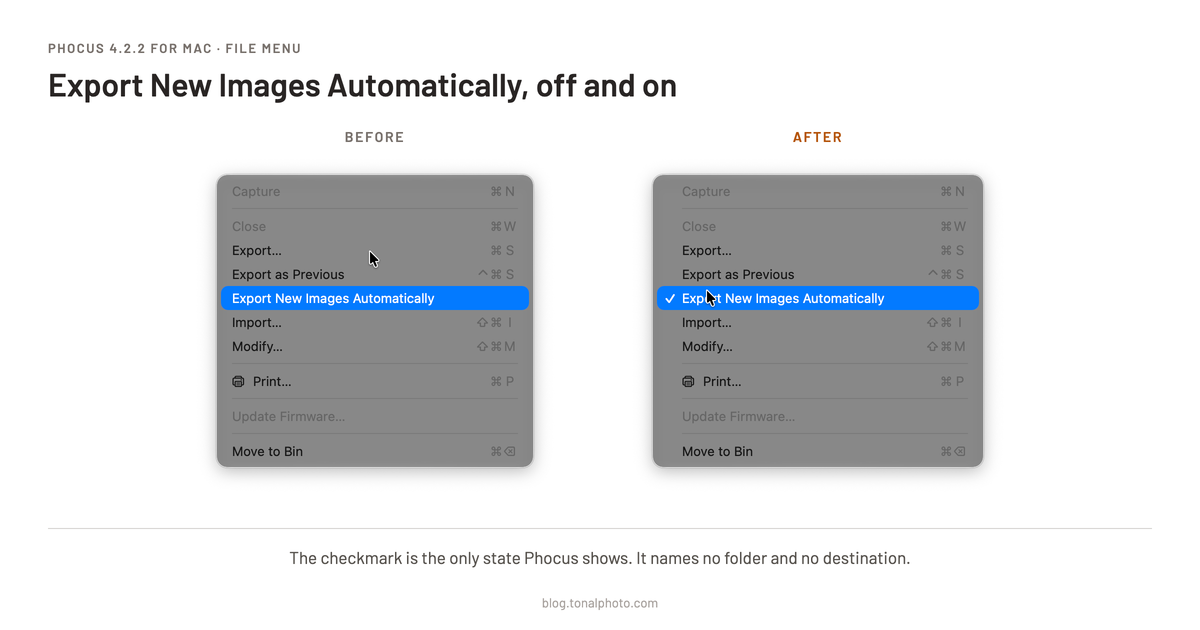
The order matters: export settings first, then the folder, then the toggle.
- Select any image in the File Browser in the left-hand pane. It doesn't need to be in the folder you want watched, and it won't be exported. Until something is selected, the Export command can't be clicked.
- Open File > Export… (⌘S) and set the output. Format, bit depth and output profile. For my handoff to Lightroom that means a 16-bit TIFF. Leave the destination alone, for reasons below.
- Cancel the dialog. The format settings stick. The destination folder you picked does not. Same dialog, same Cancel button, and Phocus keeps some of your changes while quietly throwing away others.
- Now, in that same File Browser, open the folder you want watched, and stay there. Phocus only watches the folder you're in.
- Choose File > Export New Images Automatically. A checkmark appears next to the menu item, and that is all that happens.
From then on, as long as you stay in that folder and don't touch the export settings, Phocus renders every new image placed in it and exports it with the Export dialog's current settings. In one test I copied a raw file into that folder from Terminal, with Phocus untouched, and it was picked up and rendered within seconds. The exported files go to whichever destination the Export dialog opens with. On my Mac that is currently Documents.
Researching and writing the blog and page posts I produce takes up a lot of my time and costs me money for software subscriptions, tooling, and other incidentals related to running a business.
Please consider a paid membership to help me keep the lights on and pay the bills - it is only a fraction of the cost of an X2D II and a lens. Click on the button to go to the membership page to see the options available.
To switch it off, choose the same menu item again.
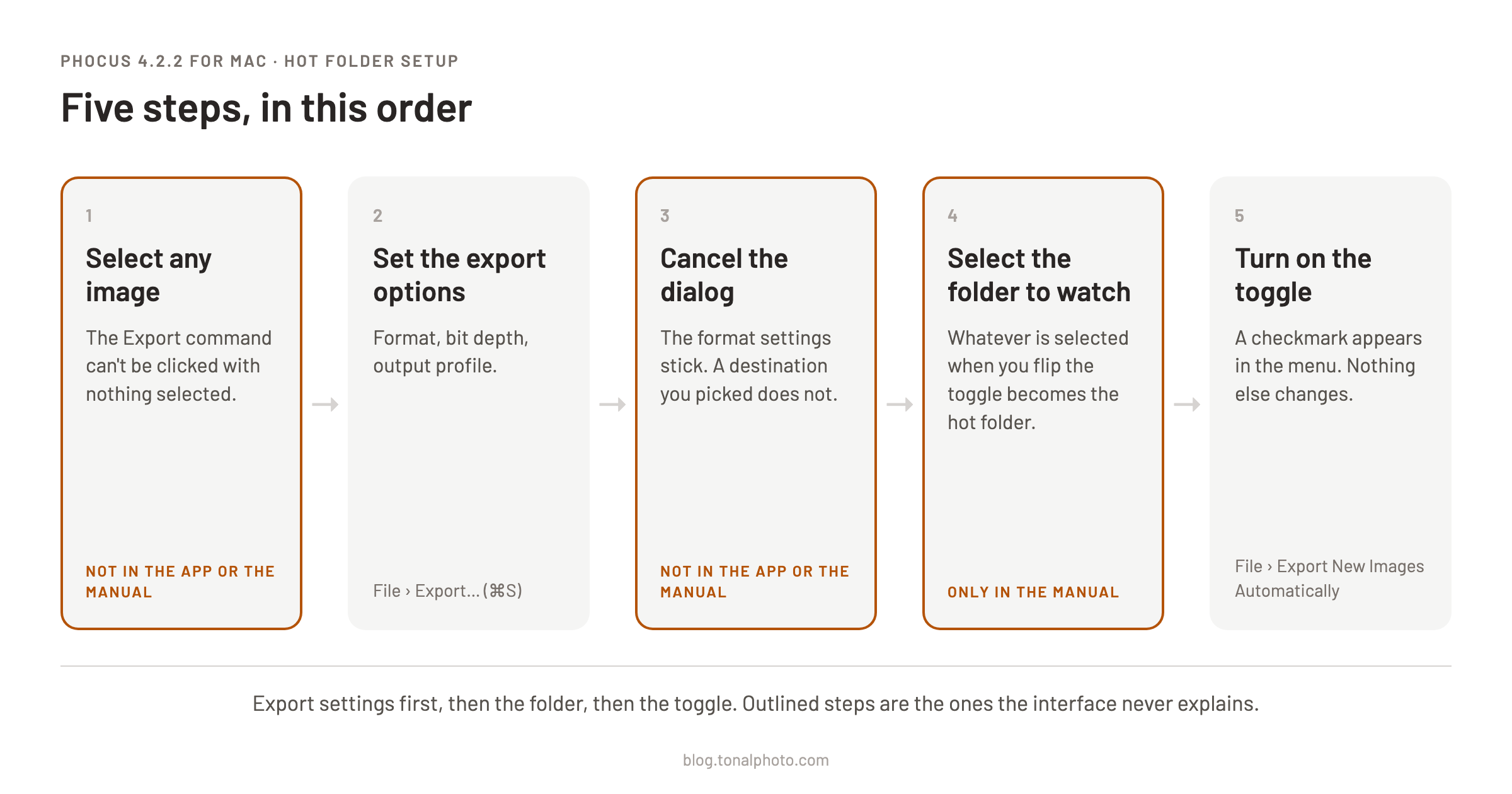
Turning it on changes nothing on screen
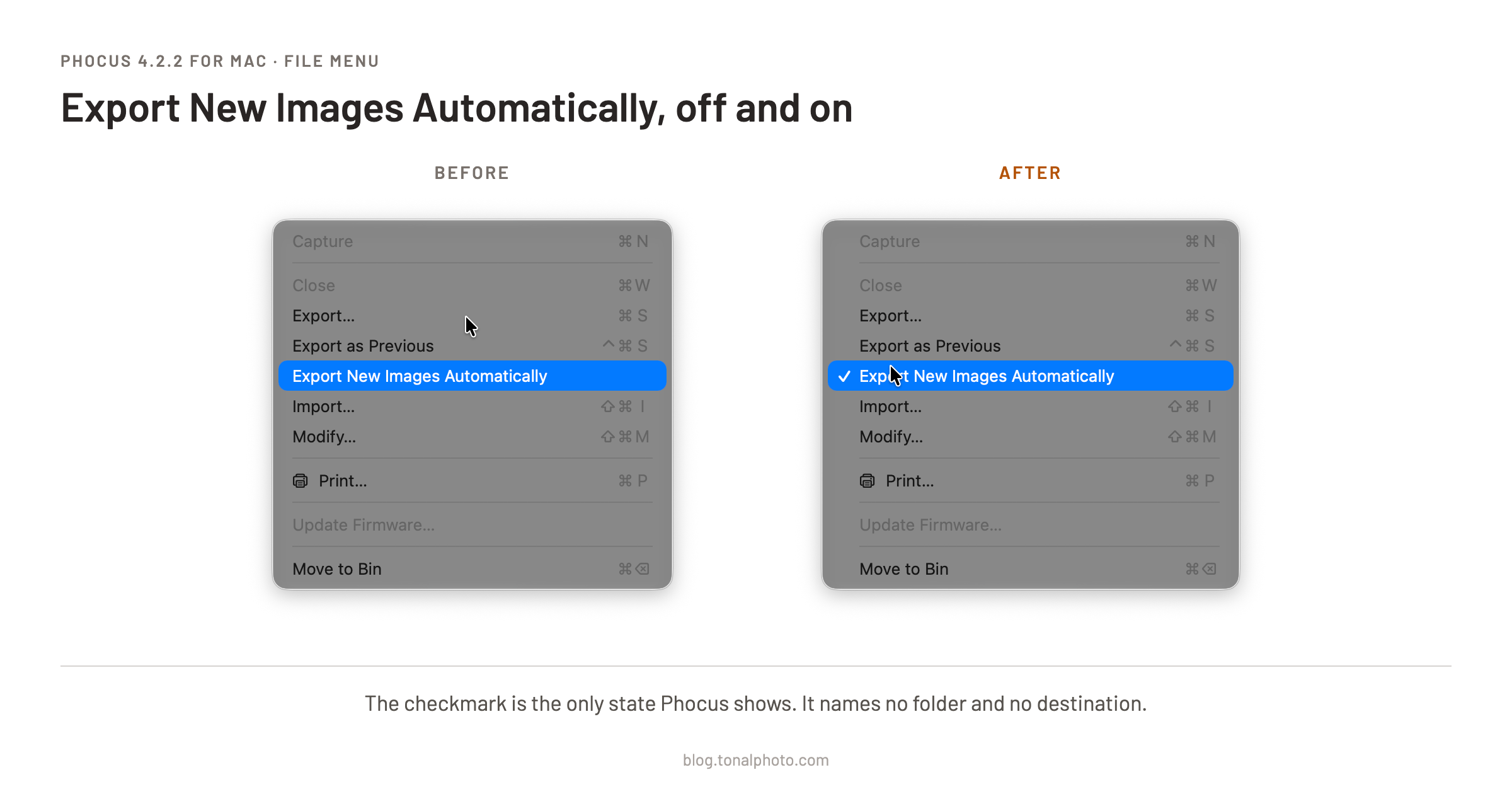
Choose the menu item and the menu closes. The window looks exactly as it did before. No dialog, no confirmation, nothing to say a folder is now being watched.
The only way to tell the feature is on is to open the File menu again and look for the checkmark. It doesn't say which folder is being watched, which export settings will be used, or where the files will go. The first real evidence arrives when you drop a file in and an export job turns up in the Queue. For a feature built to keep working after you look away, that is very little to go on.
The hot folder has no settings of its own
The hot folder doesn't keep a copy of your export settings. It uses whatever the Export dialog holds when a file lands. Set the dialog to 16-bit TIFF, test the hot folder, and watch it work. Then export one other random image as a full-size JPEG, and every file dropped into the hot folder after that comes out as a full-size JPEG too. Nothing on screen tells you the hot folder's output just changed.
The manual says the chosen options "apply specifically to that folder."⁴ In Phocus 4.2.2 they very clearly do not.
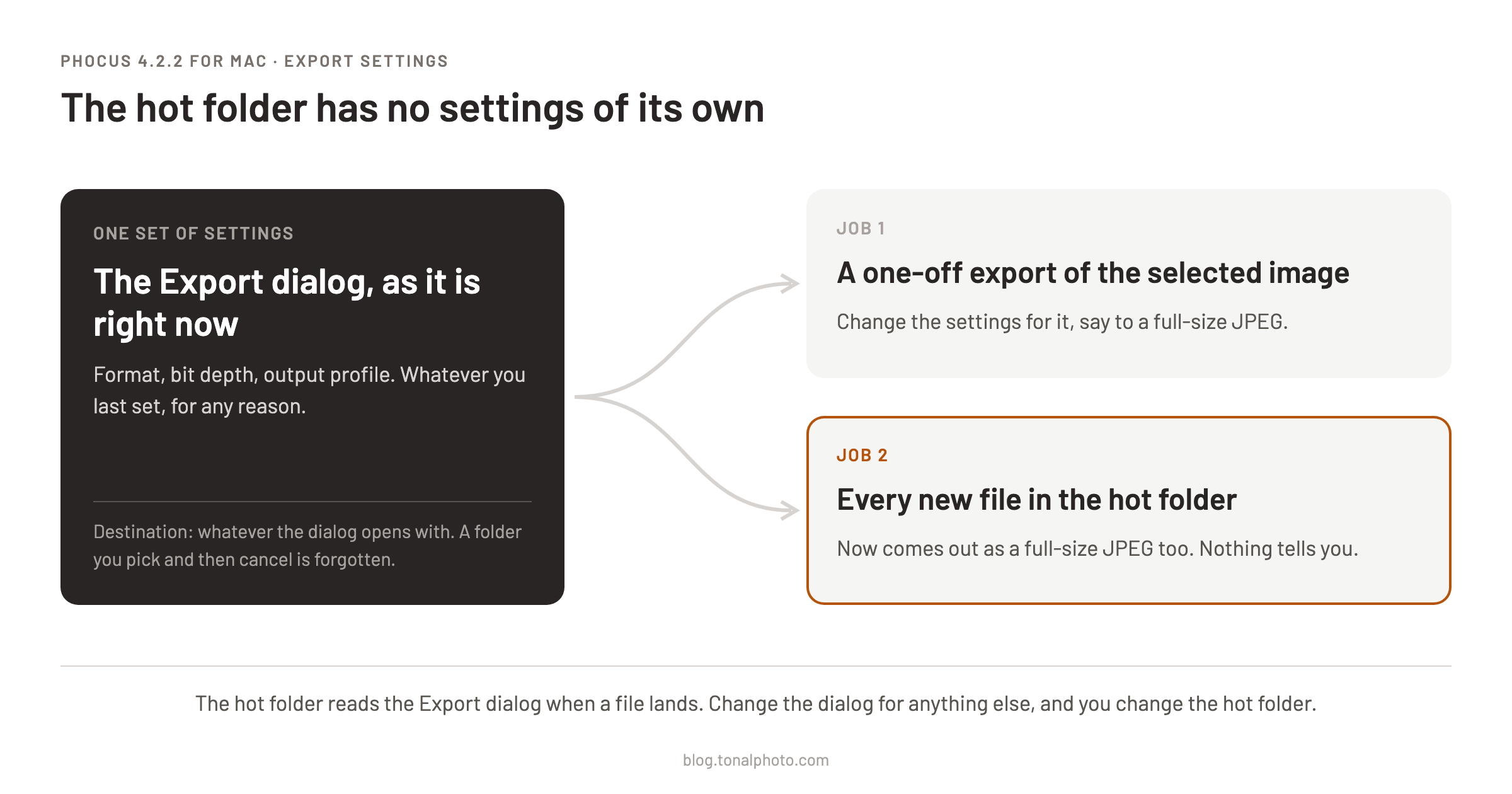
The destination is worse. Pick a new destination folder in the Export dialog, cancel, open the dialog again, and it is back on the folder it opened with. That folder is where hot-folder files go. Exporting one image manually to the new destination might make it stick. I haven't tested that.
Have you seen the guide? I've published Essential Phocus 4.x for Mac - 85 topics across 8 sections and 251 pages covering everything from HNCS color science to HDR workflows. It's the reference manual Hasselblad hasn't updated since 3.8. It's $49, and updates are included.
Everything depends on what you happen to have selected
The Export dialog that holds those settings opens only when an image is selected. So to configure a hot folder that may still be empty, you select some unrelated image, open a dialog built to export it, set everything up, and cancel. The manual doesn't mention the selection requirement.
The watched folder is chosen the same way, and it doesn't stay chosen. No dialog or field asks which folder to watch, and the toggle isn't on the folder's right-click menu. The manual says only to make sure the folder stays selected,⁴ and that turns out to be the whole mechanism. The toggle is a single on/off switch, and Phocus watches whichever folder the File Browser is showing. Move to your usual import folder and run an import or a tethered session, and every new file gets exported. Copy files into a folder Phocus isn't showing, and nothing happens. The checkmark also survives a restart, so the folder Phocus reopens on is the one that's hot.
The hot folder fails basic usability guidance
Nothing here crashes, so no automated test would flag it. The Adaptive CA crash in 4.2.2 was that kind of bug. This one is in the design, and the design ignores guidance that has been public for decades.
Jakob Nielsen's ten usability heuristics, published in 1994, are the standard checklist for reviewing an interface.⁵ Held up against them:
- Visibility of system status. An interface should keep people informed about what is going on. The hot folder's only status is a checkmark that names no folder, no settings and no destination.
- Consistency and standards. People shouldn't have to wonder what a word or action means, and products should follow industry conventions. Coming from Lightroom and Capture One, where import can make a backup copy of each raw file, I read "Export New Images Automatically" as the same thing.
- Error prevention. Good design removes error-prone conditions before they cause problems. Here, a routine export of some other image silently changes what the hot folder produces. An ordinary import into whatever folder you're browsing gets exported too.
- Recognition rather than recall. Options should be visible so people don't have to remember them. This feature only works if you remember that it's on, which folder is hot, and to reset the Export dialog after every other export.
Apple's Human Interface Guidelines say the same thing. Feedback helps people know what's happening and avoid mistakes, and Apple suggests building status feedback into the interface.⁶
The fixes are small. Give the hot folder its own folder, export settings and destination, set in one dialog when you turn it on. Show the watched folder and the destination on screen while it runs. Put a "watch this folder" option on the folder's right-click menu.
The X2D II already sets the standard
The better comparison comes from the same company: the X2D II's menu system. Press Menu and you get a settings panel. Press it again and you get eleven named categories, each holding a handful of settings. DPReview calls it "a simple and well-arranged system" and notes that many settings carry explanatory text when their function isn't obvious.⁷ Jim Kasson found its menu structure "lean and clean."⁸ To my mind it's far simpler than Sony's and most other manufacturers', and it's an absolute joy to use.
None of that simplicity has made it into Phocus for Mac, and the hot folder is one of the most egregious departures from the standard the X2D II sets. The camera's menus often explain a setting right where you change it. The hot folder watches whatever folder you happen to be looking at, borrows its settings from a dialog you use for other things, forgets the destination you picked, and reports all of it with a checkmark. Nobody needed to invent anything here. The camera team already showed how, and Apple and Nielsen wrote the guidance down years ago.
Living with the hot folder as it is
I'll file this with Hasselblad as a feature request, but I'd be gobsmacked if it ever changes. To use it as it is:
- Turn it off before you browse anywhere else, above all before an import or a tethered session. Whatever folder Phocus is showing while the checkmark is on gets exported.
- Test with one file before trusting the folder with a card's worth. Drop it in, watch for the job in the Queue, then find where the output went. On my Mac that was Documents, not the folder I had picked.
- Treat the Export dialog as belonging to the hot folder. After any one-off export with different settings, set the dialog back to your hot-folder settings before anything else lands in the folder.
- Name the watched folder so you can't mistake it, for example "Phocus Hot Folder". Phocus won't mark it for you.
- To stop it, choose File > Export New Images Automatically again and check that the checkmark is gone.
References
- Phocus User Manual, covering versions up to 3.4 (Hasselblad CDN)
- How to specify import options in Lightroom Classic: Back up photos during import (Adobe)
- How do I back up images on import into a Catalog? (Capture One Support)
- Phocus User Manual, "Export New Images Automatically", p.64 (covers Phocus up to version 3.8). Shipped inside Phocus 4.2.2 for Mac as
PhocusManual.pdf. - Jakob Nielsen, 10 Usability Heuristics for User Interface Design (Nielsen Norman Group)
- Feedback, Human Interface Guidelines (Apple Developer)
- Richard Butler and Mitchell Clark, Hasselblad X2D II 100C in-depth review (DPReview)
- Jim Kasson, Hasselblad X2D II summary (the last word)