
If you've ever hidden tool panels in the Adjust tab, rearranged your Phocus workspace, or configured the toolbar to match your workflow, you've probably noticed: it all comes back on the next launch. Every panel you removed. Every window you repositioned. Gone.
I spent weeks investigating this, filed it as a bug report, submitted plist diffs and log files to Hasselblad's senior engineering team, and waited months for a response. Turns out it was never a bug. It's a "feature." It's just so completely undocumented that even Hasselblad engineering don't seem to know about it.
Phocus Workspace Customization Is Tied to Layouts
The short version: workspace customization in Phocus only persists if you save it to a custom layout. The six built-in layouts (Standard, Browse, Viewer, Thumbnails Only, Light Mode, Standard Mode) are read-only templates. Any changes you make while using a built-in layout are session-only. Phocus discards them on restart.
This applies to everything: tool panel visibility, window arrangement, toolbar configuration, even (optionally) adjustment values. All of it is scoped to the active layout.
The reason your hidden tool panels keep coming back is that you're working in a built-in layout that can't be modified in a persistent manor.
How to Create a Custom Layout in Phocus 4.x
The fix takes about 30 seconds:
- Set up your workspace the way you want it. Hide the tool panels you don't use (Keystone Correction, Defringe, Noise Filter, whatever). Arrange your Browser, Viewer, and Thumbnail panels.
- Click the Layouts toolbar button (the icon with overlapping rectangles) and select Edit… from the dropdown.
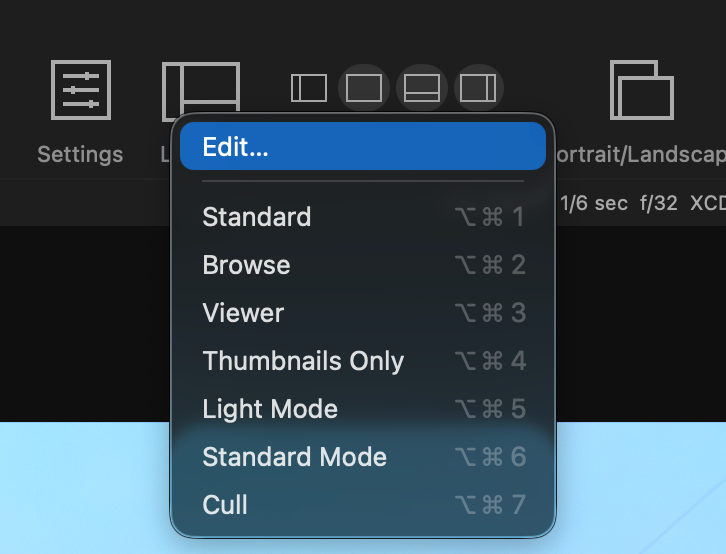
- Click + at the bottom left. Name your layout. I called mine "Cull" since I use it for the initial image selection pass.
- The editor shows four saveable scopes. At minimum, check Views and Tool layout, then click Update From Current for each.
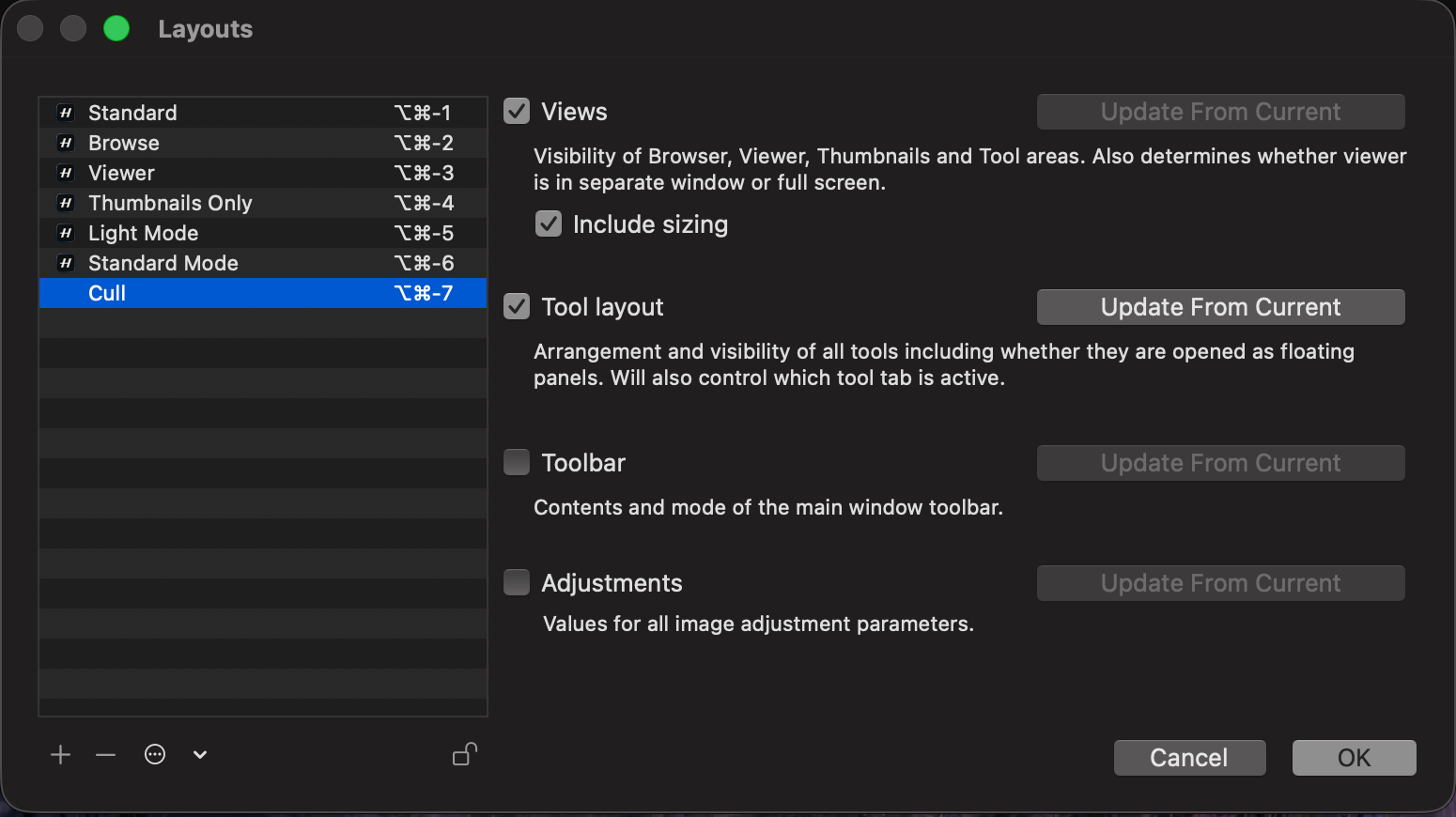
- Click OK. Your custom layout gets a keyboard shortcut (Cmd+7 or later, assigned in order).
That's it. Your workspace now persists across sessions. Switch to your custom layout after launching Phocus, and your hidden tools stay hidden, your window arrangement stays put, and your toolbar stays configured.
Researching and writing the blog and page posts I produce takes up a lot of my time and costs me money for software subscriptions, tooling, and other incidentals related to running a business.
Please consider a paid membership to help me keep the lights on and pay the bills - it is only a fraction of the cost of an X2D II and a lens. Click on the button to go to the membership page to see the options available.
What are the four saveable scopes in Phocus custom layouts?
The Layouts editor reveals something that's not visible anywhere else in the Phocus UI. Each layout stores up to four independent scopes:
Views controls which of the four main areas (Browser, Viewer, Thumbnails, Tool panel) are visible and how they're sized. If you like thumbnails on the right with a large viewer, this is what preserves that arrangement.
Tool layout controls which tool panels appear in each tab (Adjust, Capture, etc.), whether any are opened as floating panels, and which tab is active. This is the scope that makes hidden tools stay hidden. Without it checked, your tool customization reverts on restart.
Toolbar saves the main window toolbar configuration. Less commonly changed, but useful if you've added or removed toolbar buttons.
Adjustments is the surprising one. It saves actual image adjustment values (exposure, white balance, shadow fill, etc.) as part of the layout. Switching to a layout with Adjustments saved will change the adjustments on whatever image you're viewing. Most users should leave this unchecked unless they have a specific workflow reason, like a "zero everything" layout for starting fresh on each image.
Have you seen the guide? I've published Essential Phocus 4.x for Mac - 85 topics across 8 sections and 250 pages covering everything from HNCS color science to HDR workflows. It's the reference manual Hasselblad hasn't updated since 3.8. It's $49, and updates are included.
Printed version of Essential Phocus 4.x for Mac is now available! Coil bound to open flat, and printed on premium color paper.
Why doesn't Phocus save workspace changes?
Nothing in the Phocus UI hints that tool customization is scoped to layouts. When you uncheck a tool panel in the Adjust tab dropdown, it disappears immediately. The checkbox behaves like a persistent toggle. There's a "Load Default Tool Set" option in the dropdown, which implies there should be a corresponding "Save" option. There isn't one - at least not in the dropdown. The save mechanism is buried inside the Layouts editor, which most users never open because the built-in layouts work fine for basic window arrangements.
The built-in layouts compound the problem. They appear in the same dropdown as custom layouts, use the same keyboard shortcuts (Cmd+1 through Cmd+6), and behave identically during a session. The only difference is that they're read-only. But there's no visual indicator distinguishing a read-only layout from a custom one. You discover the difference when you open the Layouts editor and see that the "Update From Current" buttons are grayed out for built-in layouts but active for custom ones.
I spent weeks tracking this down by diffing the Phocus preferences plist between sessions, capturing before-and-after snapshots at launch time, and cataloguing which specific tools reverted and which didn't. The partial reversion pattern (some tools coming back while others stayed hidden) made it look like a genuine bug with a non-deterministic trigger. It wasn't. It was deterministic - it just depended on which layout was active when Phocus reloaded.
Updating Your Custom Layout
When you make further changes to your workspace:
- Layouts > Edit
- Select your custom layout
- Check the scopes that changed
- Click Update From Current
- OK
The layout updates in place. You don't need to create a new one.
What This Means for Phocus Workflow
Once you know about custom layouts, they're genuinely useful. You can create purpose-specific workspaces:
- Cull - thumbnails large, viewer small, minimal tools, Organize tab active
- Edit - viewer dominant, Adjust tab with only the tools you actually use
- Export - Export tab active, output preset panel visible
Switch between them with Cmd+7, Cmd+8, Cmd+9. Each one remembers its complete workspace state.
The feature is good. The discoverability is not. Hasselblad's official Phocus documentation (which only covers version 3.8) doesn't mention custom layouts. The Layouts toolbar button exists, but there's nothing in the application or its Help menu that explains what the editor does or why you'd want a custom layout. For a feature that's the only mechanism for persisting workspace customization, that's a significant documentation gap.
The Essential Phocus 4.x for Mac guide now covers custom layouts in detail, including all four scopes and the gotchas around the Adjustments scope.
I take a limited number of prepaid consulting hours each month. Written answers, $195 per hour. See details →