Phocus 4.1.1 Four Things That Should Be on the Fix List
Four confirmed Phocus 4.1.1 bugs that affect import presets, UI freezing, tool persistence, and adjustment transfers. All reported to Hasselblad.

Table of Contents
Phocus 4.1.1: Four Things That Should Be on the Fix List
As many of you know, I spend a lot of time in Phocus. Between writing the Phocus 4.x guide and processing my own images, I've logged hundreds of hours in the application over the past few months. Most of that time has been productive. Some of it has not.
This post covers four of the 17 bugs I've found and reported to Hasselblad, all confirmed through testing on both a Mac Mini Pro and MacBook Pro (both M4 Pro, both running macOS 26 Tahoe). Each one has been submitted to Hasselblad customer support with full reproduction steps and evidence. I'm writing about these four here because they affect daily workflows in ways that aren't obvious, and knowing about them lets you work around them.
A note on support: This post represents my personal exploration and testing, not official technical support or guidance from Hasselblad. If you need assistance with your Hasselblad equipment, please contact Hasselblad directly: customersupport@hasselblad.com for global support, support.us@hasselblad.com for the Americas, or visit hasselblad.com/support for regional options.
The Import Preset Dropdown Doesn't Do Anything
When you import images into Phocus, the Import dialog has an "Adjustment" dropdown. It offers the same HNCS presets available in the main toolbar: Standard, Nature, Portrait, Product, and Square Crop. The reasonable assumption is that selecting Nature before clicking Import will apply the Nature preset to your images as they come in.
Spoiler: It doesn't.
I tested this by importing a .3FR file with Nature selected in the Import dialog. After import, the Adjustments dropdown in the toolbar showed "3FR" (the raw baseline), not Nature. The Nature preset was never applied.
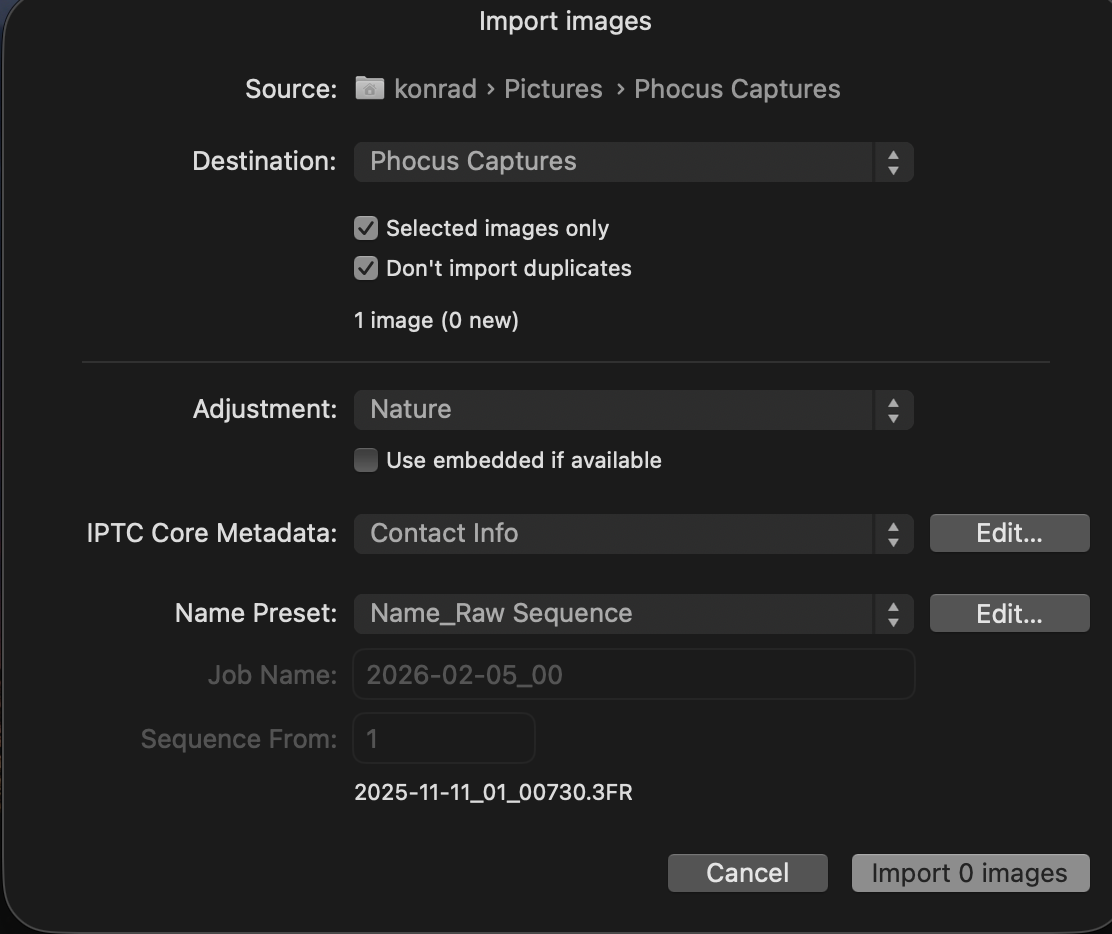
To verify this wasn't a display issue, I manually switched the Adjustments dropdown to Nature after import. The image visually changed and the histogram shifted. Switching back to Standard produced a histogram identical to the post-import state. The import had applied Standard (or nothing), regardless of what I selected.
The Phocus application log confirms it. During import, the log records pyramid generation and thumbnail processing for each file, but there is zero mention of the Adjustment selection. The import code path appears to not read the dropdown value at all.
Why it matters: HNCS presets set the rendering baseline for every adjustment you make afterward. If you think you're working on a Nature baseline but you're actually on Standard, your tonal and color decisions are being made against the wrong reference. For a single image you'd probably notice. For a batch import of 200 images from a landscape shoot, you might not realize until you're deep into editing.
Workaround: After import, select all images in the browser, then use the Adjustments dropdown in the main toolbar to apply the preset you wanted. Or use Modify to apply it in bulk.
Phocus Can Freeze for Minutes with No Warning
During a normal editing session (local files on SSD, 9 GB memory footprint, plenty of RAM available), Phocus froze on me completely. Not a brief stutter. Ten minutes of solid spinning beachball, requiring a force-quit.
The macOS hang report captured what was happening: Phocus was trying to read file attributes, and that read was taking forever to complete. The problem is where this was happening. Phocus runs this file check on its main thread, the same thread responsible for drawing the interface and responding to your clicks. While it waits for the file system to respond, nothing else can happen. The entire application locks up.
On a fast SSD under normal conditions, this file check takes less than a millisecond and you'd never notice. But if anything slows down the file system response (disk contention, background processes, or macOS kernel scheduling), the UI freezes for exactly as long as the delay lasts. There's no timeout. No fallback. The application just waits.
Every other well-built Mac application runs file operations like this in the background so the interface stays responsive regardless of what the file system is doing. Phocus does it on the main thread.
Why it matters: If Phocus has ever frozen on you and you didn't know why, this could be it. The hang duration depends on conditions outside your control. It might be a two-second stutter you barely notice, or it might be a ten-minute lockup that forces you to kill the application and lose your unsaved work.
Workaround: None. If it happens, wait or force-quit. Keeping your working directory on a fast local SSD (not an external drive or network share) reduces the likelihood but doesn't eliminate it.
A pattern that might explain more than one freeze
I can only prove this specific case from the hang report. But the underlying pattern - doing work on the main thread that should run in the background - would also explain several other Phocus behaviors that many of you have probably noticed:
- Import lag: The UI locks up for the first chunk of a large import before becoming responsive partway through. If the initial file processing runs synchronously on the main thread before handing off to a background queue, this is exactly what you'd see.
- HNNR lockup: Running HNNR on even a single image makes Phocus unresponsive until the operation completes. HNNR is computationally heavy (it uses the CPU, GPU, and Neural Engine simultaneously), but there's no reason the UI should freeze while it runs. A background dispatch with a progress indicator is standard practice.
- Preview scrolling lag: Browsing through images in the thumbnail browser is noticeably sluggish, even on fast hardware. In my earlier resource monitoring work, thumbnail scrolling drew more GPU power than HNNR processing (15.6W vs 3.5W). If each preview render blocks the main thread instead of loading asynchronously, every scroll step waits for a full decode-and-render cycle before the interface can respond to the next one.
I haven't confirmed the main thread is the cause in these three cases the way I have for the filesystem hang. But the symptom is identical across all of them: the UI stops responding while Phocus does work that should be happening in the background. If Hasselblad's engineering team addresses the threading pattern in the filesystem code, it would be worth looking at these paths too.
Your Adjust Panel Tool Customizations Won't Stick
The Adjust panel in Phocus lets you toggle individual tools on and off. If you never use Keystone Correction or Noise Filter, you can uncheck them to declutter your workspace. The checkboxes work exactly as expected while Phocus is running.
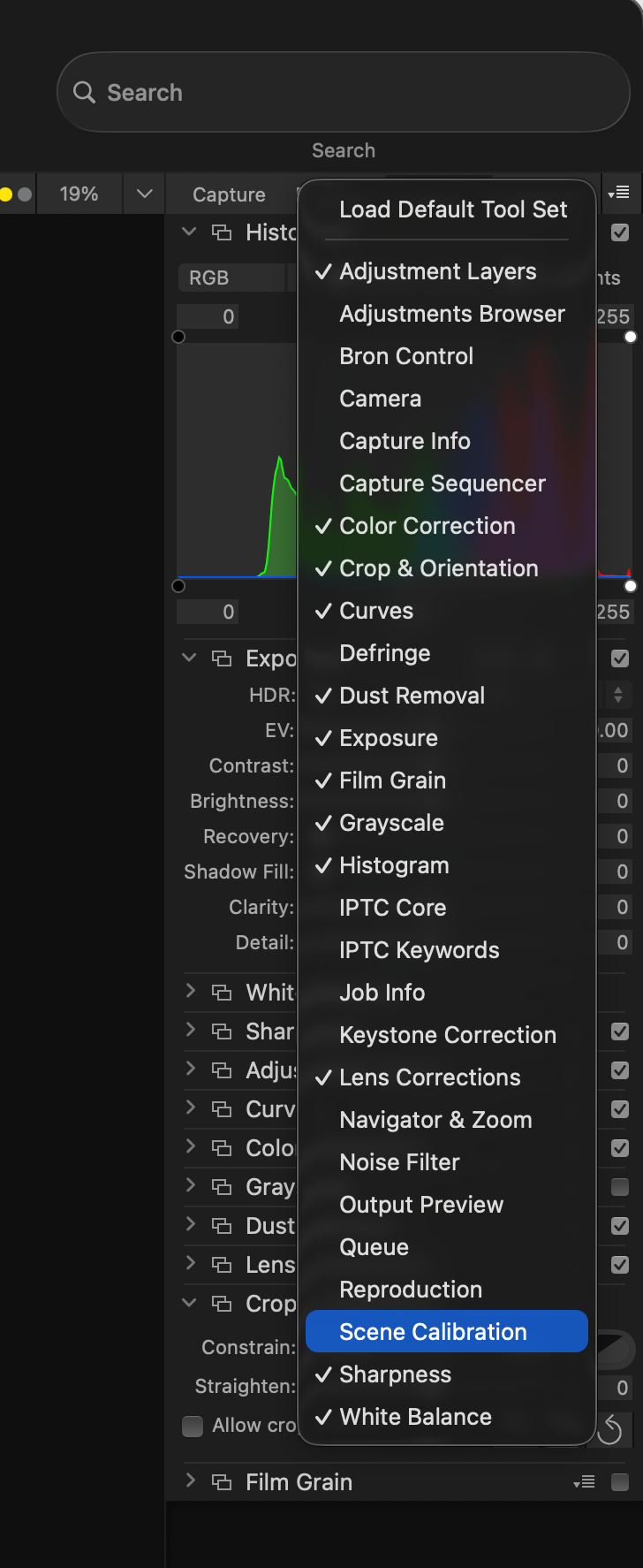
The problem is what happens next. Quit Phocus, relaunch it, and some or all of your removed tools are back. Not always immediately, and not always all of them, which makes this especially frustrating to pin down.
I spent considerable time investigating this one, including setting up automated monitoring that captured timestamped snapshots of Phocus's preferences file every time it changed. What I found was that Phocus only writes your tool visibility preferences when the application quits, and when it does, it sometimes writes stale data instead of your actual current settings.
The details get technical (I'll link to the full investigation below), but the short version is: Phocus appears to maintain two separate copies of your tool configuration in memory. One tracks your actual changes. The other is frozen from when the application launched. When Phocus quits, it sometimes saves from the frozen copy instead of the current one. Your customizations are silently overwritten with whatever the tools looked like at startup.
This also means that if Phocus crashes, freezes and needs to be force-quit (see bug #2 above), or macOS terminates it for any reason, your tool preferences are gone. Every other Mac application writes preference changes immediately when you make them. Phocus waits until quit, and even then gets it wrong sometimes.
Why it matters: It's a minor annoyance on its own, but it adds up. Every time your tools reset, you have to spend time reconfiguring them. And because the behavior is intermittent (sometimes settings persist, sometimes they don't), you can't predict when it will happen.
Workaround: None. Reconfigure your tools when they revert.
"Use Last Saved Adjustments" Only Works Once
The Adjustments toolbar has a button called "Use Last Saved Adjustments." The name implies it reads from your saved adjustment data and applies it to the current image. A reasonable expectation: edit one image, save, move to the next, click the button, and your previous edits transfer over. This is how copy/paste settings works in Lightroom and Capture One.
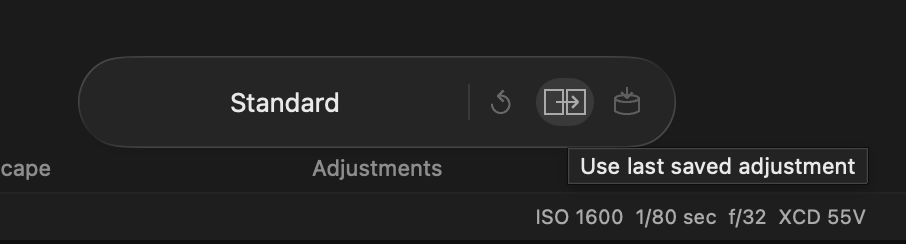
That's not what the button does.
"Use Last Saved Adjustments" works from a temporary buffer that holds unsaved adjustments. Edit Image A, navigate to Image B (which triggers auto-save on A), and the button is available on B. Click it and A's edits apply to B. So far so good.
But the buffer is one-shot. If you click Save Changes on B (or if auto-save fires when you navigate away), the buffer is cleared. Permanently. Navigate to Image C and the button is grayed out. Go back to Image A (whose edits are fully saved in its .phos sidecar file) and the button is still grayed out. There is no way to retrieve A's adjustments through this button again.
The button is named "Use Last Saved Adjustments" but it only works with unsaved adjustments. The act of saving is precisely what destroys the buffer. The name is the opposite of what the feature does.
Why it matters: If you're trying to apply the same edits to a series of similar images and you happen to save along the way (or Phocus auto-saves for you), you lose the ability to transfer those settings. You have to remember to do all your transfers in one pass before any save event fires.
Workaround: Use the Modify workflow instead. Edit Image A, then select Image A plus all target images in the browser, and click Modify in the toolbar. Check the Exposure tool group (or whichever groups you want to transfer) and click OK. This works regardless of save state. The downside is that you need to know all your target images upfront.
All Reported, Waiting for Fixes
All four of these have been reported to Hasselblad with detailed reproduction steps, screenshots, screen recordings, and (where relevant) log analysis. I've received acknowledgments on all of them and several are reportedly with the engineering team.
I'm not writing this to complain. I'm writing it because Phocus is the only application that preserves Hasselblad's HNCS color science through the editing pipeline. That makes it worth using despite its rough edges. But knowing where the rough edges are lets you plan around them.
If you've hit any of these yourself, you're not alone, and they have been reported. If you've experienced any of the behaviors described here and would like Hasselblad to know it's not just one person noticing, consider sending a brief note to customersupport@hasselblad.com describing what you've seen. You don't need to include technical detail - just which behavior you've experienced, how often, and what version of Phocus you're running.
Multiple reports of the same issue carry more weight than a single detailed one. If you'd like a simple template to work from, let me know in the comments and I'll put one together.
For readers interested in the technical investigation behind these bugs (stack traces, preference file monitoring, log analysis), I've published a companion post with the full engineering details.
Have you seen the guide? I've published Essential Phocus 4.x for Mac - 72 topics across 156 pages covering everything from HNCS color science to HDR workflows. It's the reference manual Hasselblad hasn't updated since 3.8. Pay-what-you-want starting at $19. Get it here.

The Tech Behind the Frame Newsletter
Join the newsletter to receive the latest updates in your inbox.